Key takeaways
- Bulk-convert your entire WordPress media library to WebP in batches by upload year to avoid timeouts on shared hosting.
- Choose a non-destructive converter that keeps original JPEGs and PNGs on disk for easy rollback.
- Back up the uploads directory and database, and test the conversion on staging before modifying a client's production site.
- Verify WebP delivery by checking the Content-Type header in DevTools as a logged-out visitor, and ensure your CDN isn't caching the wrong format.
- Converting to WebP does not hurt SEO as long as original URLs are preserved or 301 redirects are in place; alt text remains unaffected.
You can convert an entire existing WordPress media library to WebP with a single plugin in an afternoon: bulk-convert the old uploads, keep fallback formats for browsers that don't support WebP, and verify what's being served. The pre-conversion checklist and rollback plan are crucial, especially when the site belongs to a client.
Why convert all WordPress images to WebP instead of only new uploads?
Optimizing only future uploads leaves the bulk of your media library untouched. On a site that's been live for a few years, most images are old JPEGs and PNGs. WebP typically reduces image file sizes significantly compared to JPEG at similar quality, meaning every old image you skip is bandwidth you continue to pay for on every pageview.
Serving WebP to browsers that support it (nearly all of them now, per Google's WebP compression study) while keeping originals as fallbacks creates a uniform pipeline instead of a mix of optimized new files and outdated legacy ones. Bulk conversion is non-destructive if done correctly: originals stay on disk, so a rollback is just a settings change. This is particularly important when the site belongs to a client. Tools like FoldRocket facilitate cleanup and conversion as library-wide tasks for this reason.
What should you check before running a full-library WebP conversion?
Bulk conversion affects every image on the site, so mistakes can have widespread consequences. Run this checklist first.
Back up uploads and the database
Copy the entire /uploads directory and export the database before making any conversions. If the plugin rewrites URLs or alters EXIF data, the backup is your only rollback option. Store it off the server, not in the same hosting account.
Test on staging first
Create a staging copy of the largest client site you manage and run the conversion there. Staging sites typically don't consume a license seat, allowing you to test across multiple client copies before affecting production. Check a few templates visually: featured images, galleries, and anything hard-coded in CSS.
Check server and CDN support for WebP
Ensure your server can serve WebP and that your CDN or caching layer won't cache the wrong format for different browsers. Conflicts with older optimization plugins' rewrite rules are common, so deactivate or reconfigure those before converting.
FoldRocket (comparison with Imagify) focuses on library organization and cleanup, so for extensive image optimization, you may still want to pair it with a dedicated converter.
How do you bulk-convert an existing media library to WebP with a plugin?
Pick a plugin that converts in batches, not one shot
A plugin that queues the library and processes it over time is preferable to one that attempts a single job. One-shot conversions can time out on shared hosting, leaving half the library converted without a record of progress. Batch processing allows you to pause, check results, and resume.
Run the conversion in batches by upload year or folder
Don't convert everything at once. Filter by upload year or folder if your library is organized, converting one segment at a time. Start with the oldest year, as those files are least likely to be revisited. After each batch, spot-check five images on a staging copy before proceeding. WebP support is now nearly universal in browsers, with about 97% global support according to the caniuse WebP support table. If you use folders for client handover, converting folder by folder keeps each client's media in a manageable chunk; the trade-offs between folder plugins are discussed in our comparison.
Keep originals on disk
Never allow a converter to delete the source JPEG or PNG. Originals are your rollback path and re-encoding source if you later adjust quality settings. A non-destructive converter writes WebP alongside the original and retains both.
What happens in browsers that don't support WebP, and how do fallbacks work?
Safari supports WebP from version 14 (2020), so the number of browsers that can't handle it is small but notable: older Safari on macOS, some in-app webviews, and legacy enterprise setups. Your conversion plugin needs a strategy for these requests, and there are three methods worth knowing.
Three fallback mechanisms compared
| Mechanism | How it works | Risk on client sites |
|---|---|---|
<picture> element | Theme markup swaps the source per browser | Requires template editing; may conflict with page builders |
| .htaccess rewrite | Server serves WebP when the browser's Accept header allows it | Conflicts with caching and CDN rules |
| JS sniffing | Script detects support and rewrites URLs | Adds render-blocking JS; can be fragile |
Why rewrite-based fallbacks can break caching plugins
Rewrite rules assume the server sees each browser's Accept header. Page caches like WP Rocket or LiteSpeed may cache the first response and serve it to all visitors, resulting in a cached WebP URL for a Safari visitor that cannot render it. If you use rewrite-based fallbacks, exclude media paths from full-page caching or cache per format. A <picture>-based approach avoids this issue entirely, which is why we prefer serving fallbacks at the markup level in FoldRocket rather than at the server level — applying the same non-destructive logic we use for cleanup and ALT text (see how that pairs with our ALT tooling at this link).
How do you verify that WordPress is actually serving WebP images to visitors?
A plugin can convert every file and still leave visitors downloading JPEGs. WordPress has supported WebP since version 5.8, but what gets served depends on your plugin, server rules, and CDN (WordPress 5.8 release notes). Verify all three.
Check the Content-Type in DevTools
Open an incognito window, load a page, and inspect the image request in the Network tab. The Response Headers should show content-type: image/webp, not image/jpeg. If the URL still ends in .jpg but the header indicates WebP, your plugin is rewriting on the fly. If the header indicates JPEG, nothing is being served.
Test as a logged-out visitor, not admin
Page caches often bypass logged-in admins. Check a page in a private window or incognito session to see what a real visitor experiences. Do this on a page you haven't modified in hours to ensure the cache is warm.
Verify the CDN isn't caching the wrong format
If you use Cloudflare or similar, purge the cache after conversion, then run a curl request with Accept: image/webp and inspect the returned Content-Type. Edge caches can hold the pre-conversion JPEG for weeks. If headers appear correct locally but incorrect at the edge, purge and retest.
If headers conflict with what the plugin reports, contact us with details about your host and cache setup, and we will help you troubleshoot.
How do you roll back or re-convert images if a WebP conversion goes wrong?
Disable WebP serving before touching files
First, turn off WebP serving in the plugin settings. This prevents WordPress from rewriting URLs to .webp files while you work, ensuring visitors continue to see the original JPEGs or PNGs instead of broken images. Clear any page cache and CDN cache after making this switch, or stale WebP URLs may continue to be served for hours.
Restore originals from backup
If originals were replaced instead of retained, restore the uploads directory from your pre-conversion backup. If the plugin stored originals alongside the WebP versions, simply delete the WebP files and confirm the original filenames are intact in the media library. In either case, spot-check a few attachments on a staging copy before affecting production.
Re-convert with different settings
Once you’ve confirmed the originals, re-run the conversion with adjusted quality settings, ensuring the originals are retained this time. A non-destructive conversion makes re-converts inexpensive; destructive ones leave rollback as your only option.
Does converting images to WebP affect SEO, and how should URLs and alt text be handled?
Converting to WebP does not negatively impact rankings by itself. What matters is whether the file retains the same URL. Plugins that convert in place and rewrite the extension change URLs, necessitating 301 redirects. Plugins that keep original URLs and swap the MIME type via rewrite rules avoid the redirect issue entirely; others wrap images in a <picture> element with a fallback <img>, which browsers and crawlers handle correctly.
Alt text is stored in the database, not the file, so a conversion that only replaces image files does not affect it. After conversion, verify that attachment metadata, captions, and ALT text remain intact, especially on multisite setups where you hand over cleaner sites. Google indexes images by URL, alt text, and surrounding content, not format, according to Google's image SEO guidelines.
Which WordPress plugin should you use to convert images to WebP — and what else should it do?
Criteria: non-destructive, batched, maintained, no credit meter
Evaluate any converter based on four criteria: it must keep originals and serve WebP alongside them for easy rollback; it should convert in batches to prevent timeouts on shared hosting; it must be actively maintained to ensure reliability; and it should not charge per image or per month, as a one-time license is preferable to a subscription model.
Where FoldRocket fits — and where it doesn't
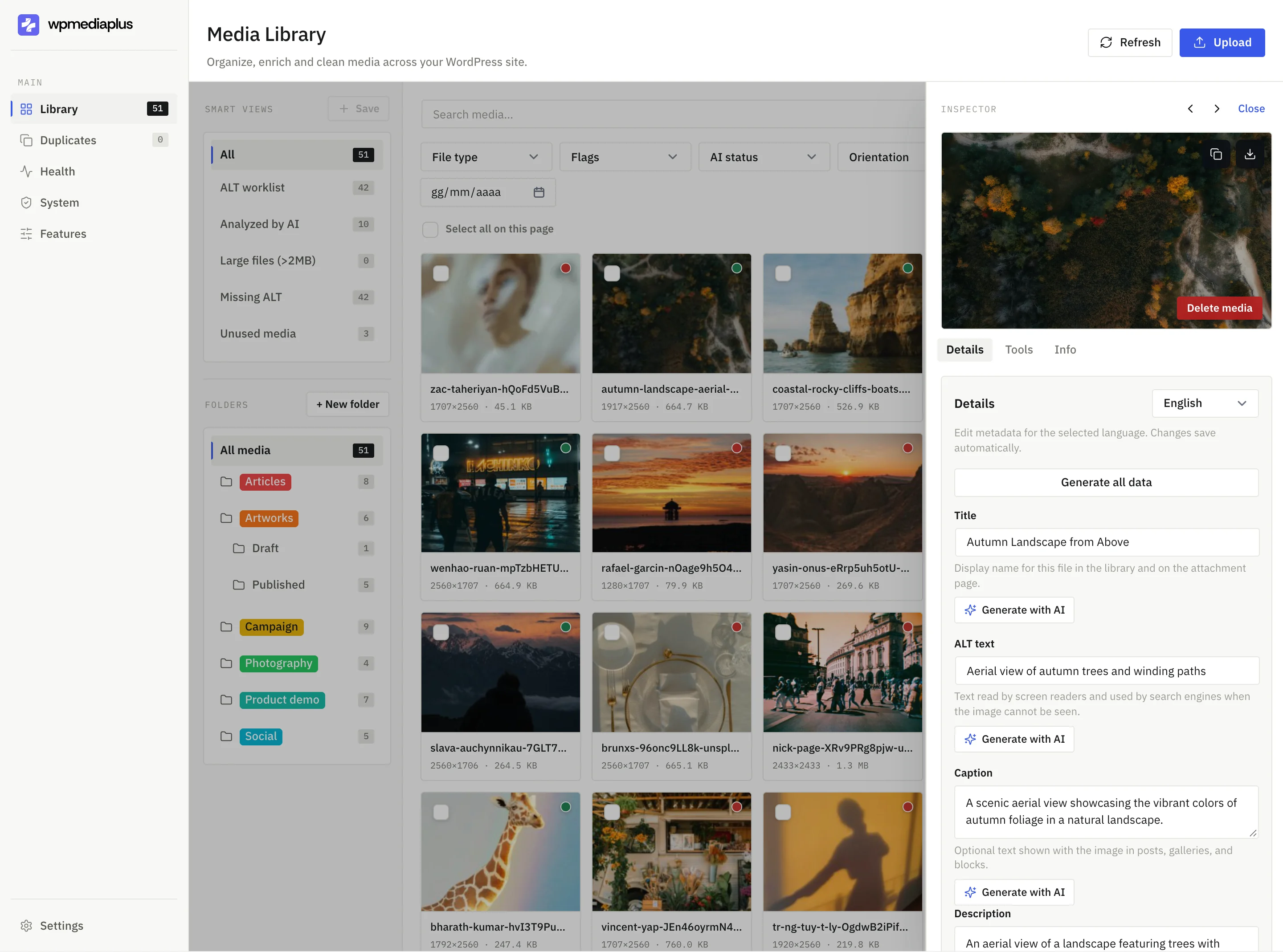
FoldRocket meets the non-destructive and no-credit-meter criteria, and its features for folders, duplicate cleanup, ALT text editing, and renaming tools streamline the workflow you'd otherwise need to piece together from multiple plugins. However, it is not a dedicated image optimizer. If you require aggressive compression tuning, CDN delivery, or serving WebP at the server level, consider using it alongside a dedicated optimizer.
FAQ
Will converting to WebP break my existing image URLs?
It depends on the plugin's method. Converters that maintain original URLs and swap the MIME type via server rewrite rules leave links untouched. Those that rewrite extensions change URLs, requiring 301 redirects. A <picture>-based approach also preserves the original URL. Check your plugin's method before running a full-library conversion.
How long does it take to convert a media library with 10,000 images?
Expect it to take an afternoon, not just a few minutes. Batched plugins process the library in segments, which is crucial on shared hosting where a single large job may time out. Converting year by year with spot-checks of five images between batches is slower but safer. The exact duration depends on file sizes, hosting resources, and how aggressively the plugin throttles itself.
Do I still need an optimization plugin if everything is already WebP?
Possibly. WebP significantly reduces file sizes compared to JPEG, but a dedicated optimizer provides additional compression tuning, CDN delivery, and server-level serving that tools like FoldRocket do not cover. If your converter produces well-compressed files and your headers verify correctly, you may not need an additional plugin. Test actual page weight before adding more plugins.
Can I convert images to WebP without losing the original files?
Yes, if you choose a non-destructive converter. It creates the WebP version alongside the original JPEG or PNG, keeping both on disk, so rollback is just a settings change and re-encoding later incurs no cost. Avoid any plugin that deletes or overwrites source files. Always take a full backup of the uploads directory before converting, as a precaution.