
Audit ALT text
Start with informative images. Decorative images can use empty ALT; content images need a description of their purpose on the page.
Guides
Audit missing ALT text, rename files with context, choose WebP where useful, and review image metadata before publishing. Check rendered image sizes.
Who this is for: Editors and agencies auditing missing ALT text, unclear filenames, or oversized images before publishing.
What you will solve: Give informative images useful metadata and serve an appropriate format and size, with editorial review before changes.
An image needs the right job-specific metadata as well as an appropriate file size. Write ALT text for the image in context, name files before upload when possible, and verify the format and dimensions the page actually serves.
Start with informative images. Decorative images can use empty ALT; content images need a description of their purpose on the page.
Use clear filenames, and choose WebP for suitable photos and screenshots. Keep PNG or SVG where sharp edges or transparency call for them.
Check the rendered page in PageSpeed and DevTools. A smaller file matters when the browser downloads the right responsive size.
Filter the library for missing ALT, open one informative image in Inspector → Details, and write ALT for its purpose on the page. Review the visible title and caption separately. If you use an AI draft with your own key, check it against the image before saving, then inspect the rendered page.
Inspect the metadata workflow in the docs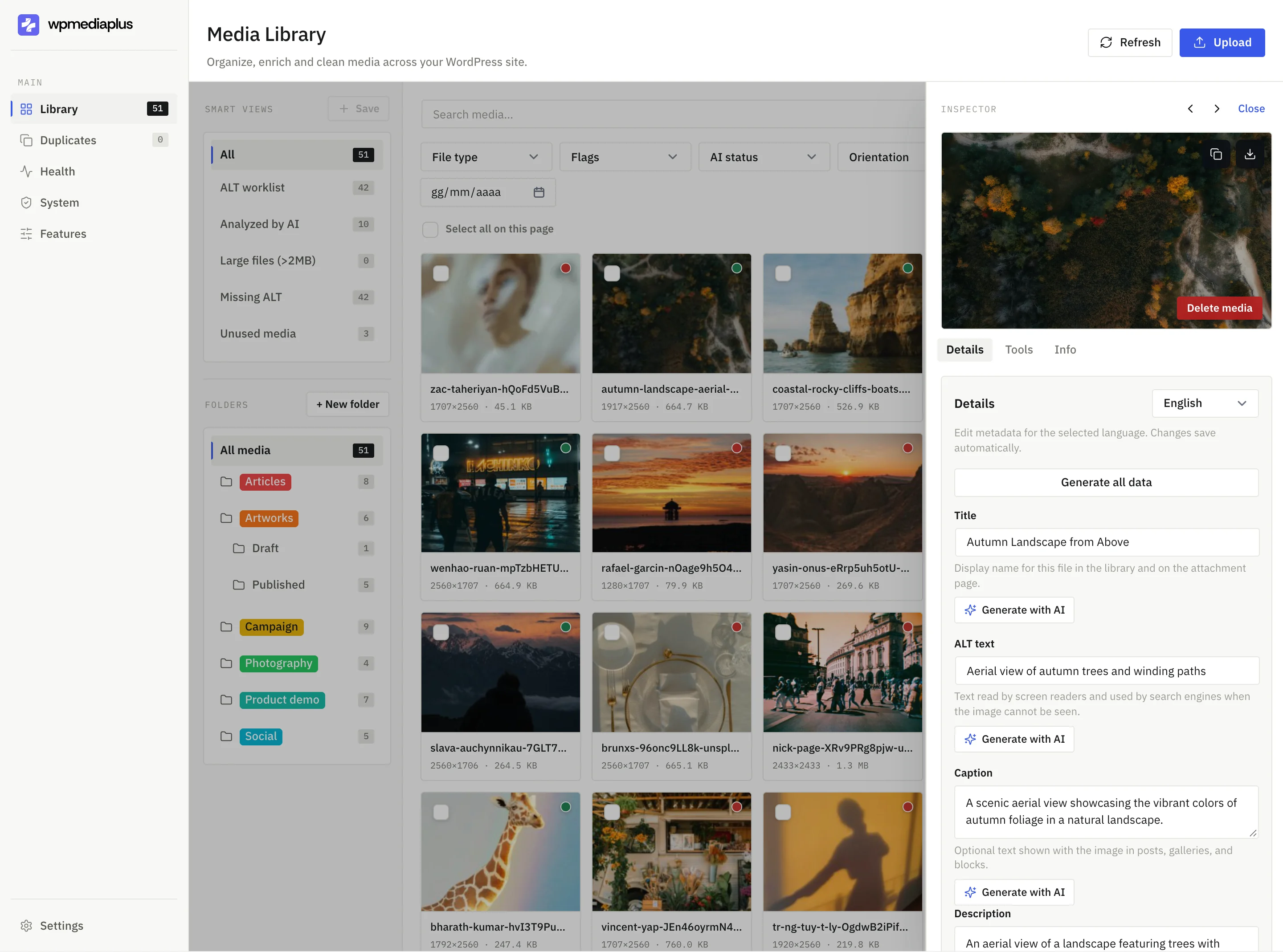
Compare what the tools actually do, then try the workflow on a real library before deciding what fits your site.