Key takeaways
- Filename search fails on renamed copies, so hash-based or visual matching is what actually catches duplicate images.
- Windows PowerShell hashing and Mac Terminal md5 commands find exact duplicate files for free with no extra software.
- Visual (perceptual) matching catches resized, re-compressed, and lightly edited copies that hash matching misses.
- Deleting files directly from wp-content/uploads breaks WordPress attachment records, so use a plugin that updates references.
- Always preview duplicate matches before deleting and keep the oldest copy by default, since other content usually references it.
You can find duplicate images for free using built-in tools on Windows (PowerShell hashing) and Mac (Terminal or the Photos app), plus free tiers of dedicated duplicate finders. Filename search fails on renamed copies, so hash-based or visual matching is what actually catches them. This guide covers both platforms, then shows how to clean a WordPress media library without breaking it.
Why do duplicate images appear even when filenames differ?
Duplicates rarely come from one bad day. They accumulate through four routine workflows: re-uploading an image that already exists, exporting the same edit from Lightroom or Photoshop twice, sync tools like Dropbox or OneDrive copying a "conflicted copy" when two machines change a file, and save-as versions that pile up while you iterate on a design. Client sites get the worst of it because several people upload to the same media library.
Why 'image (1).png' and 'hero-banner-final.png' can be the same file
Filename search fails here because the name is metadata, not the content. A browser download appends "(1)" to avoid overwriting; a designer renames "image (1)" to "hero-banner-final" before it ever reaches you. Same pixels, zero shared characters. Windows' Photos app can detect identical photos and videos in a folder (Microsoft support), but it matches content, not names — which is the point. That's why hash-based matching, covered later, beats any filename query, and why tools like FoldRocket compare file content when scanning a WordPress media library rather than trusting what a file is called. For a side-by-side of how media plugins handle this, see the comparison page.
How do you find duplicate images on Windows for free?
PowerShell hashing for exact copies
Exact copies share the same file hash, so PowerShell can find them with no extra software. Run Get-ChildItem -Recurse | Get-FileHash | Group-Object Hash | Where-Object Count -gt 1 over your uploads folder and you get a list of identical files. This catches byte-for-byte duplicates only, so a resized or re-compressed copy slips through.
What the Photos app does and does not catch
The Windows Photos app groups screenshots and burst shots visually, but it is not a duplicate finder. It will not scan an arbitrary folder tree, and it misses renamed or resized copies because it matches context, not content. Treat it as a browser, not a cleaner.
Free tiers of dedicated duplicate finders
Tools like dupeGuru and AllDup offer free scanning with visual similarity modes, which catch resized and re-named copies that hashing misses. Pick by what you need:
| Tool | Catches renamed copies | Catches resized copies | Free? |
|---|---|---|---|
| PowerShell hash | Yes, identical contents | No | Yes |
| Photos app | No | No | Yes |
| dupeGuru / AllDup | Yes | Yes | Yes |
Get-FileHash compares file contents, so identical copies still match after a rename. Resizing changes the contents and normally changes the hash. See the Microsoft Get-FileHash documentation.
Whatever you delete, do it outside a live WordPress site first. Renamed duplicates inside wp-content/uploads break references that filename search never sees; for cleanup that respects the media library, see our Imagify comparison.
How do you find duplicate images on Mac for free?
Smart Folders and the Photos app Duplicates album
If your images live in the Photos app, open the Duplicates album in the sidebar (Photos shows it under Utilities) and click Merge. Photos matches visually identical shots, not just identical filenames, and merging keeps one copy with the highest quality. Apple documents the workflow in its Photos support pages.
For Finder-based libraries, build a Smart Folder with kind = Image, sort by name, and eyeball near-identical filenames like hero.jpg and hero copy.jpg. It works, but renamed duplicates evade it entirely.
md5 via Terminal for exact matches
For bit-identical files anywhere on disk:
find ~/Downloads -type f -name "*.jpg" -exec md5 {} \; | sort
Files with the same hash are exact duplicates. It catches renamed copies but not re-compressed or resized ones.
Free tiers of Mac duplicate finders
Dedicated tools use perceptual hashing to catch resized or re-saved copies, and their free tiers typically let you scan and preview before you pay. Preview before apply is non-negotiable on client machines.
For WordPress libraries specifically, renaming side effects matter; we cover that in our Media File Renamer comparison.
How do you find duplicate images with different names?
Filename search fails the moment an image was saved twice with a new name, exported from an editor, or downloaded twice from the same source. Two methods catch what filenames cannot.
Hash matching: same bytes, any name
A hash tool reads the file's actual bytes and produces a fingerprint. Identical files produce identical hashes regardless of filename, folder, or date. This catches exact copies: the image you downloaded twice, the backup you copied before editing, the file a client re-uploaded under "final_v2.jpg". It is fast and has essentially zero false positives, because identical hashes mean identical bytes.
Visual matching: resized, recompressed, or edited copies
Visual (perceptual) matching compares what the image looks like rather than what it contains. It shrinks the image to a small grid, compares patterns, and flags files that look nearly identical even when the bytes differ. This catches the copy you resized for a hero banner, the version WordPress recompressed on upload, and the slightly-cropped variant a client made in Canva. It is slower and occasionally flags near-misses, which is why a preview before apply matters: you confirm each match before anything is deleted, and a wrong merge is reversible rather than permanent (our refund policy at https://foldrocket.com/refunds/ exists for exactly that reason).
Which method catches which duplicate type
Hash matching catches exact copies only. Visual matching catches resized, recompressed, and lightly edited copies, plus exact ones. Most free tools do one: Windows' built-in Photos app and Explorer search cover exact matches, while duplicate finders like dupeGuru (free, open source) offer both modes with a fuzzy-match slider. If a client's library is full of renamed originals, start with visual matching, then use hash matching to confirm the exact copies it surfaced.
When should you use a hash-based tool instead of filename search?
Decision path: three questions to pick your method
First: do the copies share a filename? If yes, a Finder or Explorer search is enough. You can build a Smart Folder that matches "IMG_" and sorts by size to spot repeats (Apple's Smart Folders guide shows how saved searches work).
Second: do the filenames differ but the files look identical? That's the renamed-upload case, and filename search is useless here. Use a hash-based tool: it reads file contents and flags exact byte-for-byte matches regardless of name.
Third: are the files visually similar but not identical, like a resized export? Then you need visual matching, which compares image content rather than bytes.
Where each method wastes your time
Filename search misses everything renamed. Hash matching misses resized or re-compressed copies, because a single changed byte produces a different hash. Visual matching catches those, but it's slower and produces false positives you must review. Inside WordPress, virtual folder tools like HappyFiles (https://happyfiles.io) organize what's there but won't dedupe; that cleanup job is what our HappyFiles comparison covers, since FoldRocket previews matches before anything is deleted.
How do you safely delete duplicates without losing the original?
Preview before apply: the rule that saves client sites
Never let a dedupe tool delete anything on the first pass. Run the scan, review the grouped results side by side, and confirm each pair actually matches. Visual matchers flag near-identical crops and exports that you may want to keep separately. A preview step turns a blind bulk delete into a reviewable decision, which matters when the library belongs to a client who will notice a missing hero image.
Keep-original rules and why oldest usually wins
Most tools let you set a rule for which copy survives: oldest, newest, or highest resolution. Pick oldest by default. The original upload date is usually the version other content references, and newer copies tend to be re-uploads or resized exports. Keep the highest-resolution copy only when you have confirmed nothing links to the smaller original.
Why WordPress attachments break if you delete the wrong file
WordPress stores attachment records in the database pointing at exact file paths. Delete the file those records reference and you get broken thumbnails across posts, plus orphaned metadata. Clean duplicates on the filesystem before they enter the library, or use a plugin that updates references, so a handover never includes a site with missing images.
How do you clean duplicates inside a WordPress media library?
Why desktop duplicate finders can't see your media library
Your Windows or Mac scan finds the files on disk, but WordPress doesn't care about the filesystem. It tracks uploads in the database as attachments, and deleting a file directly leaves a dead entry pointing at a missing image. Any plugin that references that attachment (galleries, featured images, ALT data) breaks with it.
What a safe WordPress duplicate scan looks like
A safe scan works inside wp-admin, matches on file content rather than filename, and shows a preview before apply. Deletion should also clean up the attachment record and any references, so the post that embedded the duplicate doesn't lose its image. Content matching matters because WordPress silently renames uploads (photo.jpg becomes photo-1.jpg), so filename search misses them. The same principle desktop tools rely on, hashing file contents as the PowerShell Get-FileHash cmdlet does, applies inside WordPress too.
Where FoldRocket fits, and where it falls short
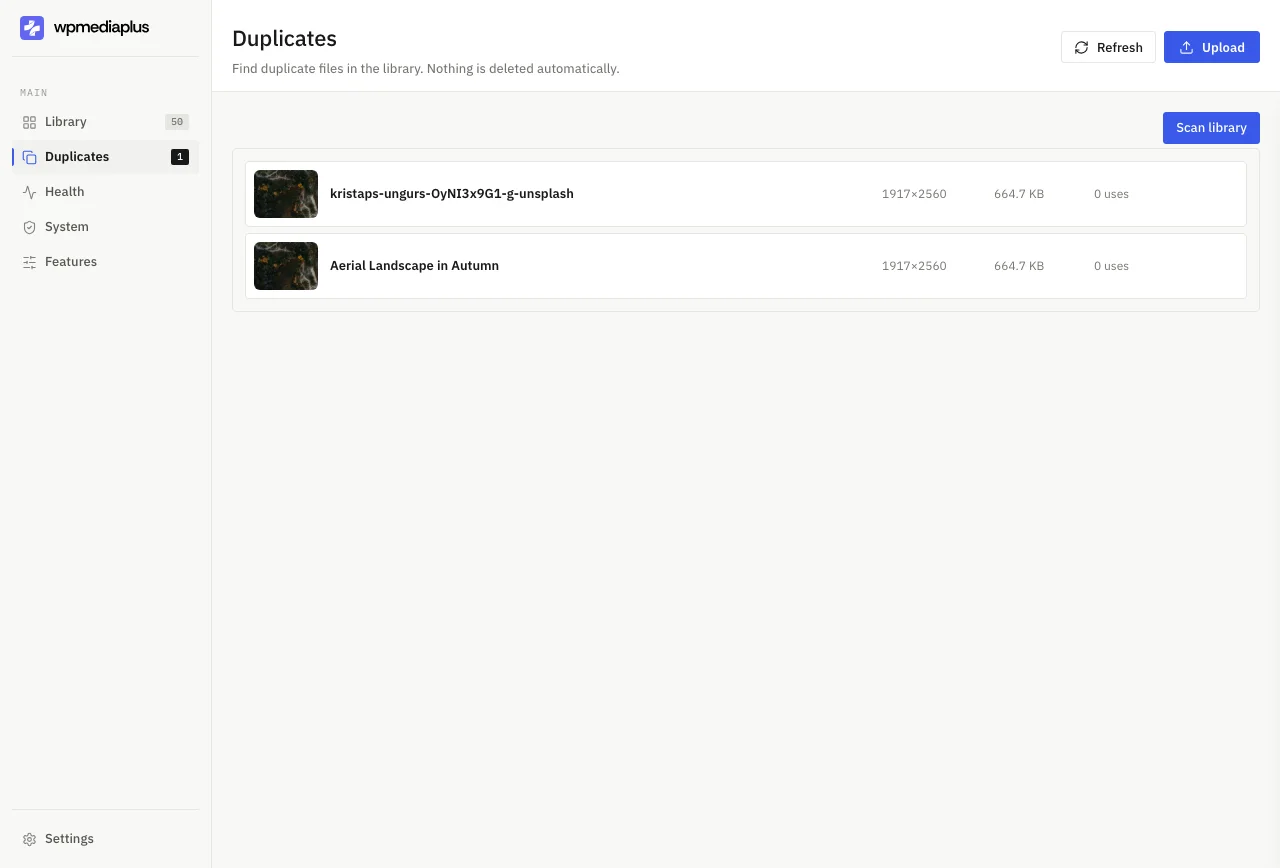
FoldRocket scans for duplicates in the library, deletes the attachment record along with the file, and previews changes before applying them, so handing over cleaner sites doesn't mean breaking embedded images. It also consolidates folders, renaming, and bulk ALT into one plugin, which matters if you've been running separate tools per client site and worrying whether each is still maintained. Where it falls short: it's WordPress-only, so it won't clean the duplicates sitting in your local design folder or a staging directory, and you'll still want a desktop tool for those.
How do you prevent duplicate images from piling up again?
One canonical upload path per project
Most duplicates come from two people uploading the same screenshot through different doors: the media library, the block editor, and a page builder each create their own copy. Pick one upload path per client site and tell everyone on the project. If a teammate needs an image, they search the library first instead of dragging a fresh copy from their desktop.
Folder organization and renaming before upload
A junk drawer library invites blind re-uploads because nobody can tell what already exists. Sort images into virtual folders by client, page, or campaign, and rename files descriptively before they enter the library, so homepage-hero-2024.webp is findable by search. Do this on your local machine before upload, or use a plugin that renames and organizes inside WordPress without moving files on disk. FoldRocket handles both, and its preview-before-apply workflow means a bulk rename never breaks a URL you forgot about.
FAQ
Is there a truly free way to find duplicate images without installing anything?
Yes, on both platforms. Windows users can run the PowerShell hashing command, and Mac users can run the Terminal md5 command or use the Photos app's Duplicates album and Merge button. All are built in and cost nothing. The catch: these catch exact copies only, so resized or re-compressed ones slip through.
Can a duplicate finder tell which copy WordPress is actually using before I delete?
A good one can. WordPress tracks attachments in the database pointing at exact file paths, so a scan that works inside wp-admin can check those records and any references from posts, galleries, or featured images before you confirm a deletion. Desktop tools scanning the filesystem can't see any of this, which is why deleting files directly risks broken thumbnails.
Will deleting duplicates from my computer break my live website?
Not if the duplicates live outside WordPress. Your site's images sit on its server in wp-content/uploads, tracked by database records, so local cleanup is safe. The risk runs the other way: if you delete files inside the uploads folder manually, you break every attachment record and embedded reference pointing at them.
How accurate is visual duplicate matching, and does it flag false positives?
It occasionally flags near-misses: slightly different crops, similar compositions, or exports you deliberately kept separate. That's the trade for catching resized, re-compressed, and lightly edited copies that hashing misses entirely. Accuracy depends on the fuzzy-match threshold, so review each grouped pair side by side before anything gets deleted or merged.